Storing auth tokens securely in a Flutter app on Android
When we ran a security review on our Flutter app, the app code itself was mostly fine. The problems were all around how the login token was handled on Android. Four small things, each easy to fix once you know about it.
1. Token stored in SharedPreferences
The token was saved with the shared_preferences package, because that is what most tutorials use. On Android, that plugin writes a plain XML file:
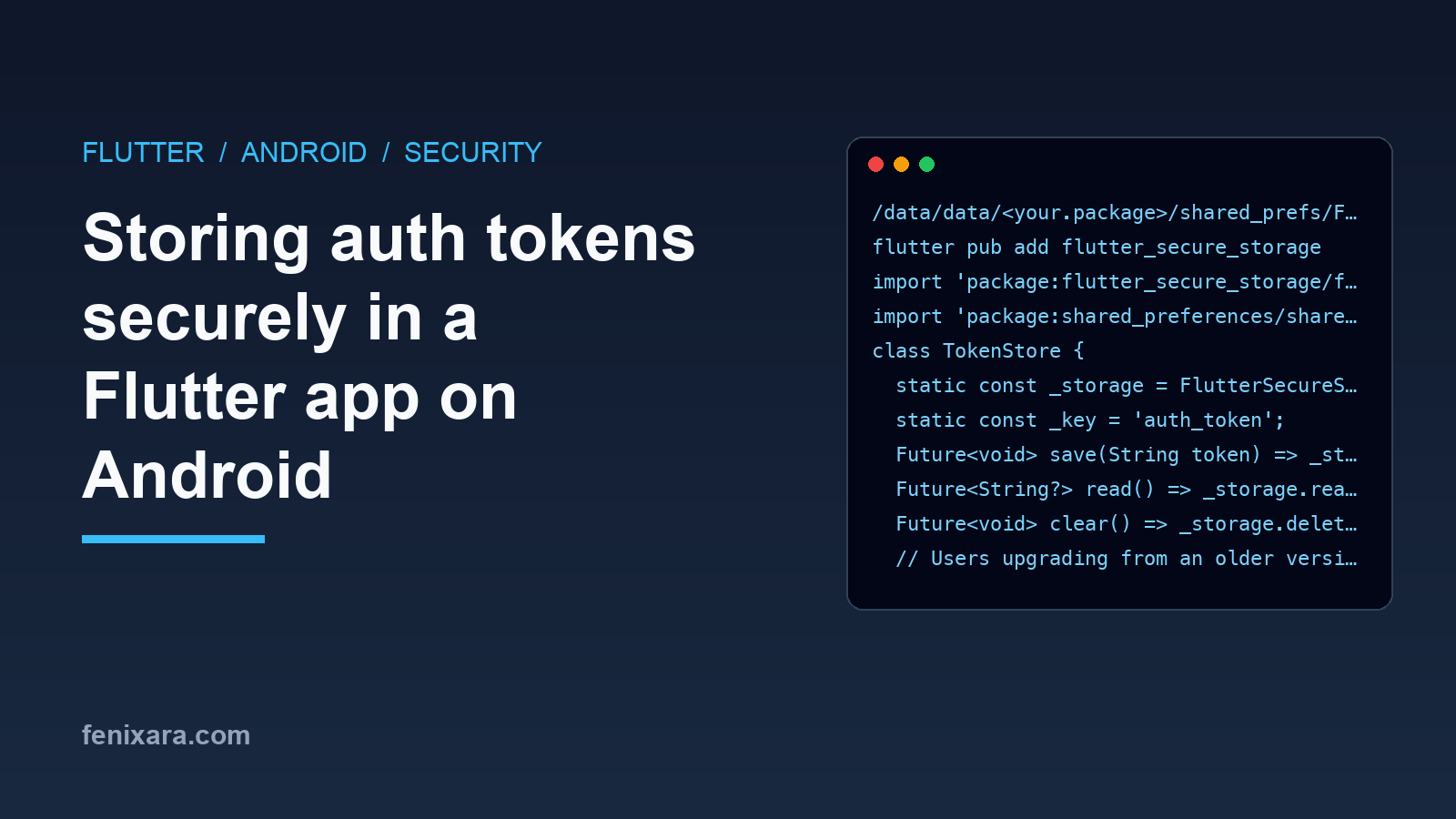
/data/data/<your.package>/shared_prefs/FlutterSharedPreferences.xml
The file is private to the app, but it is not encrypted. On a rooted phone, or through a backup (see point 3), anyone can open it and read the bearer token. With that token they are logged in as the user.
The fix is flutter_secure_storage. On Android it encrypts values with a key kept in the Android Keystore, and on iOS it uses the Keychain.
flutter pub add flutter_secure_storage
I put all token access behind one small class, so nothing else in the app touches storage directly:
import 'package:flutter_secure_storage/flutter_secure_storage.dart';
import 'package:shared_preferences/shared_preferences.dart';

class TokenStore {
  static const _storage = FlutterSecureStorage();
  static const _key = 'auth_token';

  Future<void> save(String token) => _storage.write(key: _key, value: token);
  Future<String?> read() => _storage.read(key: _key);
  Future<void> clear() => _storage.delete(key: _key);

  // Users upgrading from an older version still have the token in
  // SharedPreferences. Move it once and delete the plaintext copy.
  Future<void> migrateFromPrefs() async {
    final prefs = await SharedPreferences.getInstance();
    final old = prefs.getString(_key);
    if (old != null) {
      await save(old);
      await prefs.remove(_key);
    }
  }
}
Call migrateFromPrefs() once on app start, before anything reads the token. Without the migration, every existing user gets logged out after the update. That is not the end of the world, but it is an annoying way to ship a security fix.
2. Token written to the device logs
Our HTTP client had a logging interceptor that printed request headers, including Authorization: Bearer .... It was meant for debugging but was also on in release builds.
On Android, other apps cannot read your logs on recent versions, but anything connected over adb can, and logs end up in bug reports that users send. Guard the logging with kDebugMode and never log headers:
import 'package:flutter/foundation.dart';

if (kDebugMode) {
  dio.interceptors.add(LogInterceptor(
    requestHeader: false,
    requestBody: false,
    responseBody: false,
  ));
}
Also search the code for any print or debugPrint that includes the word token. We had one in the login flow that printed the whole response.
grep -rniE "(print|log).*token" lib/
3. allowBackup left at the default
If android:allowBackup is not set in the manifest, it defaults to true. That means the app data, including shared preferences and databases, can be pulled out through backups.
Set it explicitly in android/app/src/main/AndroidManifest.xml:
<application
    android:label="myapp"
    android:allowBackup="false"
    ...>
On Android 12 and above, allowBackup="false" does not stop device to device transfers when someone moves to a new phone. If that matters for your app, also add android:dataExtractionRules pointing to a rules file that excludes your data. For us, logging in again on a new phone was the right behaviour anyway.
4. No network security config
Since Android 9, cleartext HTTP is blocked by default for apps that target recent SDKs, so this was not an open hole. But making it explicit means nobody can turn it back on by accident, and the review tools stop flagging it.
Create android/app/src/main/res/xml/network_security_config.xml:
<?xml version="1.0" encoding="utf-8"?>
<network-security-config>
    <base-config cleartextTrafficPermitted="false">
        <trust-anchors>
            <certificates src="system" />
        </trust-anchors>
    </base-config>
</network-security-config>
And reference it in the manifest:
<application
    android:networkSecurityConfig="@xml/network_security_config"
    ...>
Certificate pinning can also go in this file. We decided against it for now. If the certificate changes and the app has the old pin, every installed copy stops working until users update. For most apps, that risk is bigger than the attack it prevents.
Clearing the token on logout and reinstall
Once the token is in secure storage, make sure it actually goes away when it should. On logout, delete it along with anything else tied to the session:
Future<void> logout() async {
  await TokenStore().clear();
  // also clear any cached user profile or API responses here
}
There is one more case that surprised us on iOS. Keychain items survive an app uninstall. A user who deletes the app and installs it again opens it and is already logged in with the old token. On Android the Keystore entries are removed on uninstall, so this only shows up on iPhones, which makes it easy to miss in testing.
The usual fix is a flag in SharedPreferences, which is wiped on uninstall on both platforms. If the flag is missing, this is a fresh install, so clear secure storage before doing anything else:
Future<void> clearTokenOnFreshInstall() async {
  final prefs = await SharedPreferences.getInstance();
  if (!(prefs.getBool('installed') ?? false)) {
    await const FlutterSecureStorage().deleteAll();
    await prefs.setBool('installed', true);
  }
}
Call this first in main(), before migrateFromPrefs() and before anything reads the token. The flag is not sensitive, so plain SharedPreferences is fine for it.
What was not a problem
The review also flagged the Firebase API keys in the app bundle. These are meant to be public. They identify the Firebase project, and access is controlled by Firebase security rules and API key restrictions in the Google Cloud console, not by keeping the key secret. Check that the restrictions are in place and move on.
Checking a release build
To confirm the changes, build a release APK and print the final manifest with apkanalyzer, which comes with the Android SDK command line tools:
flutter build apk --release
apkanalyzer manifest print build/app/outputs/flutter-apk/app-release.apk \
  | grep -E 'allowBackup|networkSecurityConfig'
Then install the build on an emulator, log in, and check that shared_prefs no longer has the token and that adb logcat shows no Authorization header.
All four fixes together were less than a day of work. The token is the one thing in the app that gives full access to a user's account, so it is worth the day.